
VsDemoiOS for VSH101 – iOS SDK & Integration Guide
JL JUANG, 2026-02-03
Version: 1.0
Executive Summary
VsDemoiOS for VSH101 is an open-source iOS reference application and integration framework developed by VitalSigns Technology to accelerate the development of ECG-based monitoring, data acquisition, and AI-enabled cardiac analysis systems.
Built around the FDA-cleared VSH101 single-lead ECG device, VsDemoiOS provides developers with a complete and transparent implementation of the entire mobile-side data pipeline. This includes Bluetooth Low Energy (BLE) communication, packet-based device control, real-time ECG streaming, structured physiological data decoding, and scalable local storage. By exposing these mechanisms in a clean and modular architecture, VsDemoiOS enables engineering teams to focus on higher-level system design, algorithm development, and product differentiation rather than low-level device integration.
The framework is designed to support a wide range of use cases across academic research, system integration, and commercial product development. Through its VSC Mode (VitalSigns Command Mode) architecture, the application retrieves indexed ECG packets that contain high-fidelity waveform samples, beat and QRS markers, and device-generated measurement information such as heart rate timing, HRV parameters, skin temperature, motion data, and battery status. These packets are processed deterministically, rendered in real time, and stored using an hourly folder-based structure that facilitates long-term recording, cloud upload, and AI dataset preparation.
VsDemoiOS also serves as a practical foundation for AI-driven workflows. Customers can integrate pre-trained ECG models directly into the iOS application for real-time inference, or transmit raw and annotated ECG data to their own cloud platforms for large-scale training, validation, and retrospective analysis. Common applications include atrial fibrillation detection, myocardial infarction risk assessment, rhythm classification, and early-warning system development based on real-world physiological data.
By adopting an open and extensible design, VsDemoiOS supports flexible system architectures ranging from edge-based monitoring to cloud-centric analytics platforms. It provides system integrators and research teams with a proven, regulatory-aware starting point for building reliable ECG monitoring solutions while maintaining clear boundaries for customer-specific AI logic, clinical interpretation, and regulatory responsibility.
1. Introduction – Open Source iOS App for VSH101
VsDemoiOS is an open source iOS application framework provided by VitalSigns Technology, designed to accelerate the development of ECG monitoring applications based on the FDA-cleared VSH101 single-lead ECG device.
This project was created to support academic researchers, system integrators (SI), and professional development teams who aim to build their own ECG monitoring, data recording, and AI-driven analysis solutions without starting from scratch. By offering a transparent and extensible reference implementation, VsDemoiOS enables developers to focus on innovation, customization, and higher-level clinical or analytical value.
The VsDemoiOS app includes:
A complete iOS UI reference for ECG monitoring
Bluetooth Low Energy (BLE) device scanning and connection with VSH101
Real-time ECG data streaming and visualization
ECG data recording and local storage mechanisms
A clean and modular code structure suitable for extension and integration
At VitalSigns, we believe that openness and professionalism are not contradictory, but complementary. By open-sourcing VsDemoiOS, we aim to lower the technical barrier for our partners and customers, enabling them to rapidly prototype, validate, and deploy ECG monitoring solutions built on a proven, FDA-certified hardware foundation.
More importantly, this framework is designed to serve as a starting point for end-to-end ECG services, including:
Real-time cardiac signal monitoring
Long-term ECG data collection
AI-assisted ECG interpretation and algorithm development
Integration with customer-specific cloud platforms or clinical workflows
VsDemoiOS reflects VitalSigns’ commitment to collaborative development, engineering rigor, and regulatory-aware design. We hope this open source project will help our partners shorten development cycles, reduce integration risks, and ultimately deliver reliable ECG monitoring and AI-based analysis services to their users more efficiently.
2. Download the source code from GitHub
The VsDemoiOS application is a free and open source Swift sample project provided by VitalSigns Technology. It serves as a reference iOS application for developers who plan to build ECG monitoring solutions based on the VSH101 device.
The complete source code is hosted on GitHub and can be accessed using one of the following methods.
Option 1: Clone the repository using Git
For developers who are familiar with Git version control, we recommend cloning the repository directly:
Cloning the repository allows you to easily track updates, pull future improvements, and integrate the sample code into your own development workflow.
Option 2: Download from the GitHub website
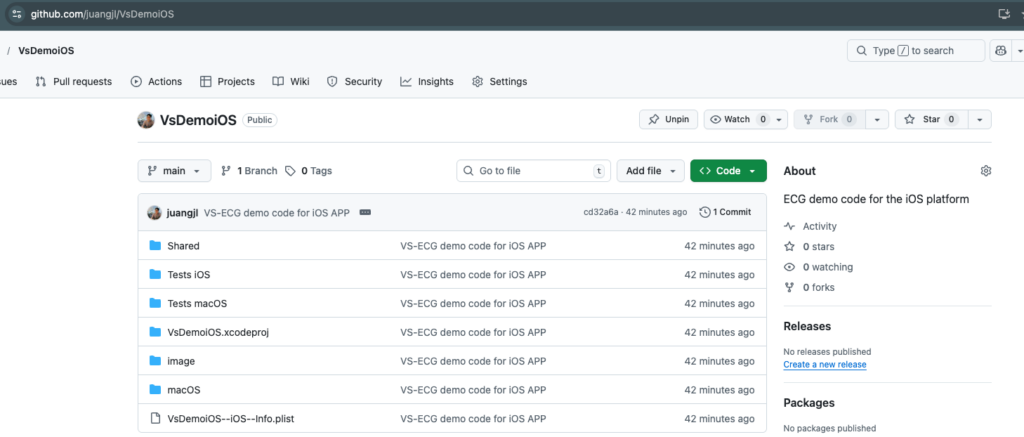
You may also visit the GitHub repository directly and download the source code as a ZIP file:
https://github.com/juangjl/VsDemoiOS
This option is suitable for users who prefer a quick download without using Git.
Repository overview
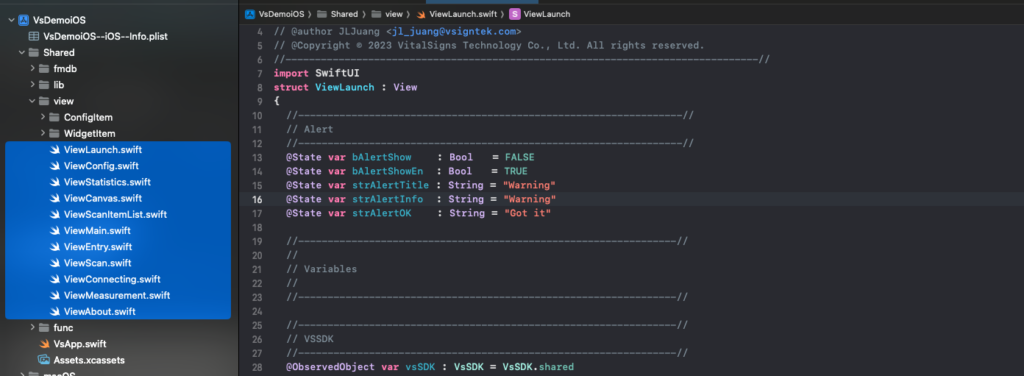
The VsDemoiOS repository contains a complete Xcode project, including:
Shared core logic and utilities
iOS-specific application code
Test targets for iOS and macOS
Project configuration files and example plist settings
This structure is intentionally designed to be clear, modular, and easy to extend, allowing system integrators and research teams to adapt the sample code to their own application architecture and branding requirements.
In the following sections, we will guide you step by step through opening the project in Xcode, configuring the required permissions, and running the app on a real iOS device connected to the VSH101.
3. Xcode Preparation
Before running the VsDemoiOS application, please ensure that your development environment is properly prepared. This section guides you through the required tools, system settings, and basic checks to help you successfully build and run the project on a real iOS device.
3.1 Development Environment Requirements
To develop and run the VsDemoiOS project, the following environment is recommended:
macOS: Latest stable version recommended (macOS14.5 or plus)
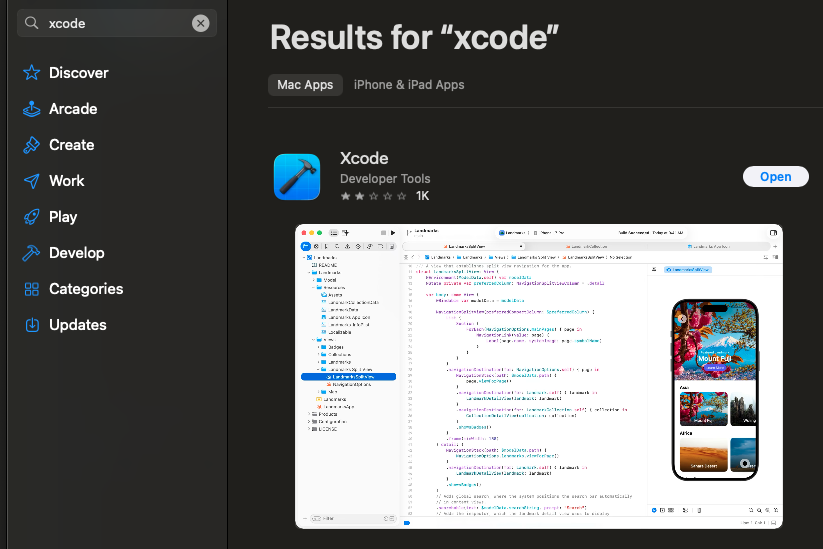
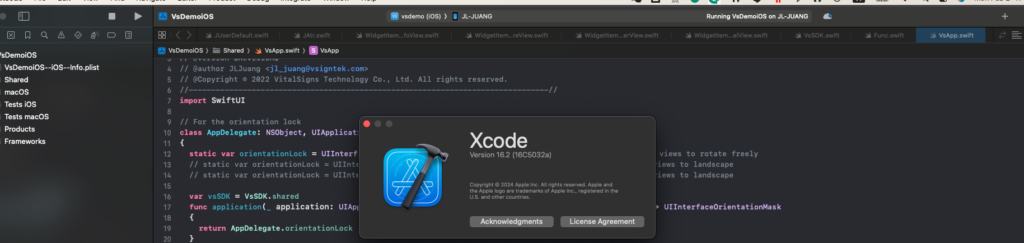
Xcode: Latest stable release from the Mac App Store (Version 16.2 or plus)
iOS Device: iPhone with Bluetooth Low Energy (BLE) support (iOS 15 or plus)
iOS Version: A recent iOS version supported by the installed Xcode
Apple Developer Account: Required for running the app on a physical device
Note: Bluetooth communication with VSH101 requires running the app on a real iOS device. The iOS Simulator does not support BLE hardware access.
3.2 Opening the Project in Xcode
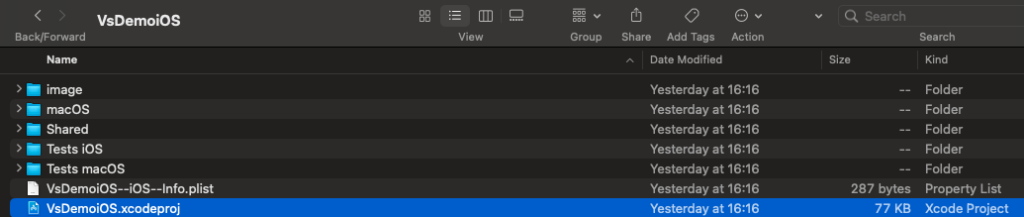
After downloading or cloning the VsDemoiOS source code from GitHub, locate the Xcode project file and open it:
Double-click the VsDemoiOS.xcodeproj file
Alternatively, open Xcode first and select File → Open, then choose the project file
Once opened, Xcode will load the project structure, including shared modules, iOS targets, and test targets.
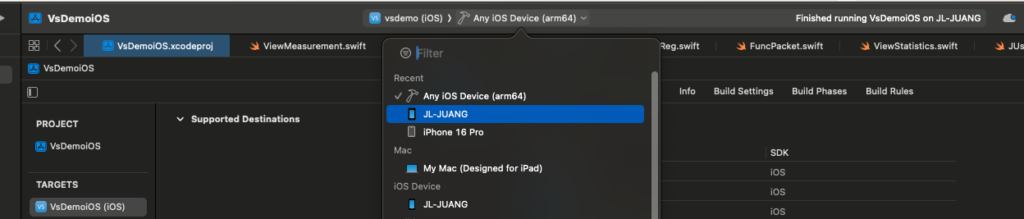
3.3 Selecting the Build Target and Device
In the Xcode toolbar:
Select the VsDemoiOS iOS app target
Choose a connected iPhone device as the run destination
Confirm that the device is unlocked and trusted by your Mac
If your device does not appear in the list, check the USB connection and ensure that the device has been trusted in macOS and iOS system settings.
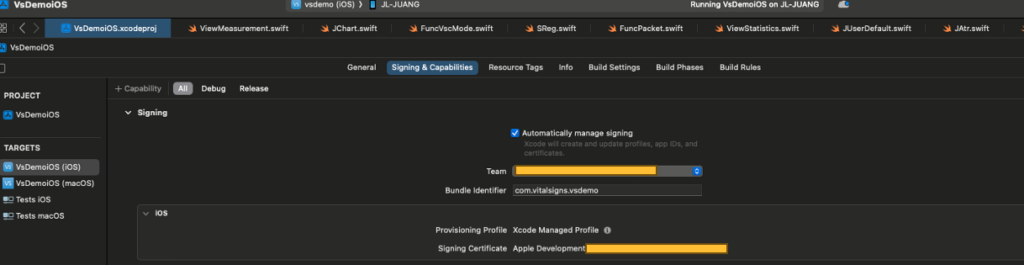
3.4 Signing & Capabilities Configuration
To run the app on a physical device, code signing must be correctly configured.
Select the VsDemoiOS target in Xcode
Open the Signing & Capabilities tab
Enable Automatically manage signing
Select your Apple Developer Team
Ensure the Bundle Identifier is unique (modify it if necessary)
Xcode will automatically generate and manage the required provisioning profiles.
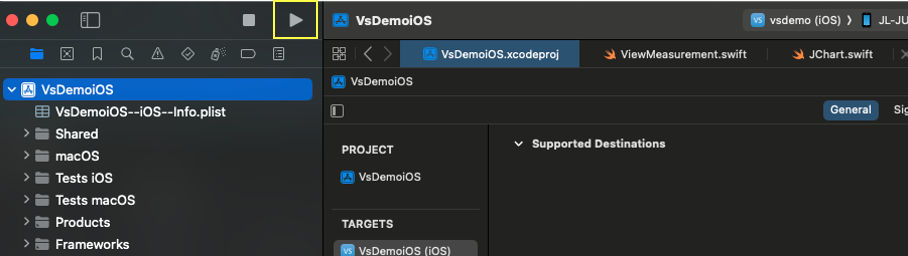
3.5 Bluetooth and Privacy Settings
Before proceeding to device connection and ECG measurement:
Click Build (⌘B) to verify the project compiles successfully
Resolve any signing or dependency warnings shown by Xcode
Ensure there are no build errors before running the app
Once the build completes successfully, you are ready to deploy the app to your iPhone.
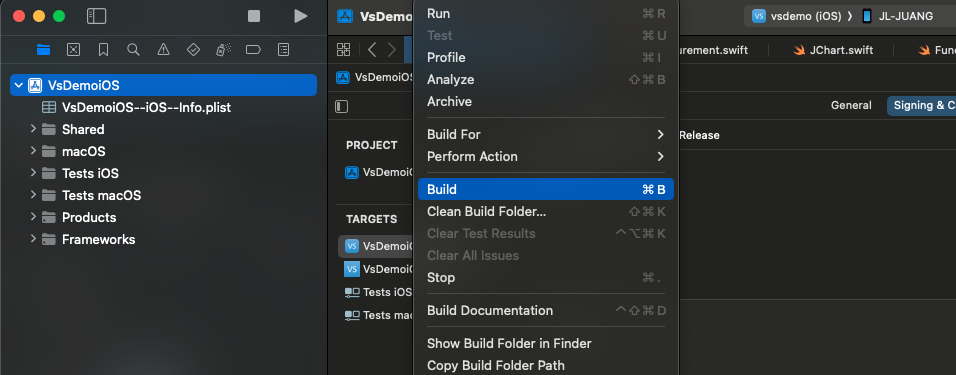
3.6 First Build Check
Before proceeding to device connection and ECG measurement:
Click Build (⌘B) to verify the project compiles successfully
Resolve any signing or dependency warnings shown by Xcode
Ensure there are no build errors before running the app
Once the build completes successfully, you are ready to deploy the app to your iPhone.
In the next section, we will walk through running the application on a real device and establishing a Bluetooth connection with the VSH101 ECG device.
4. Connect to VSH101
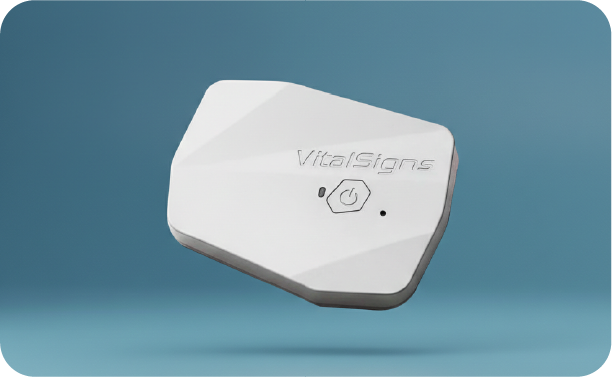
Before starting ECG measurement, please prepare a VSH101 single-lead ECG device.
If you do not yet have a VSH101 device, please contact sales@vsigntek.com for purchase information or to inquire about available ECG simulators for development and testing purposes.
4.1 Application Flow Overview
VsDemoiOS is designed as a page-based iOS application, where each view represents a clear stage in the ECG measurement workflow.
Understanding this structure will help developers quickly navigate the codebase and customize the app for their own products.
The main application flow is as follows:
Entry View
About View
Scan View
Measurement View
Each page is intentionally separated to ensure clarity, modularity, and ease of extension.
4.2 Entry View – Application Entry Point
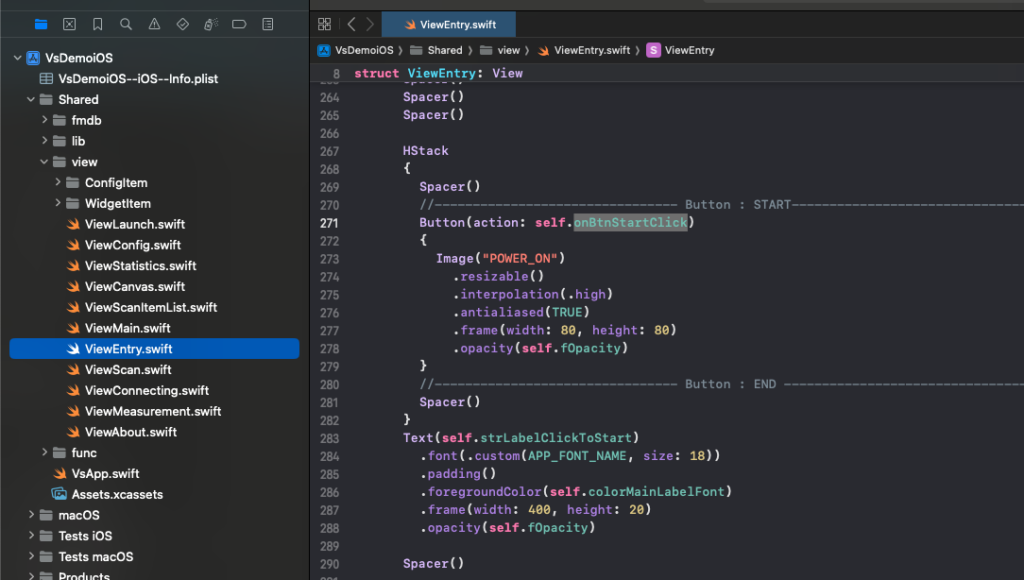
When the app launches, users will first see the Entry View.
This page serves as the starting point of the application and provides two main actions:
Click to Start – Begin the ECG measurement workflow
Info – Navigate to the About page to understand the app architecture
For developers, this view is typically used as:
The initial routing point
A place to perform basic initialization
A customizable branding or welcome screen

4.3 About View – Understanding the App Structure
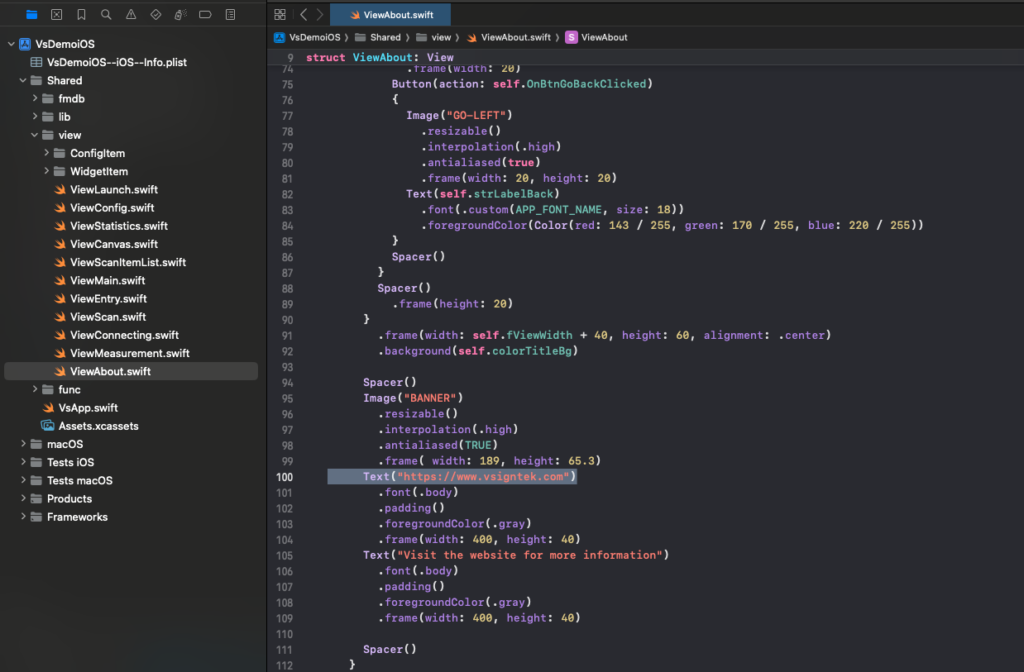
The About View explains the structure and purpose of the application.
This page is designed to help users and integrators understand:
The role of VsDemoiOS as a reference framework
The relationship between the app and the VSH101 device
How this sample app can be extended into a custom product
For system integrators, this page is a good place to:
Add company branding
Describe system architecture
Provide regulatory or usage disclaimers

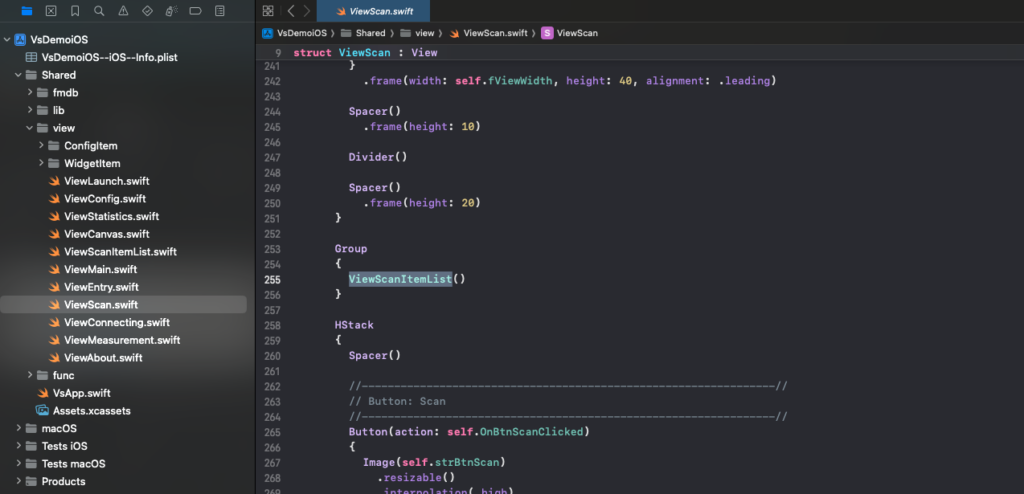
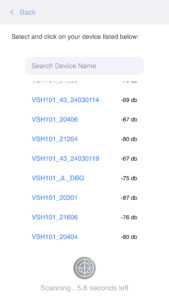
4.4 Scan View – Discover and Select a VSH101 Device
After clicking Click to Start, the app enters the Scan View.
In this view, the application performs a Bluetooth Low Energy (BLE) scan and lists nearby VSH101 devices.
Each device is displayed with:
Device name (for example:
VSH101_JL_DBG)Signal strength (RSSI, shown in dB)
To proceed:
Ensure the VSH101 device is powered on
Select one device from the list
The app will automatically initiate a connection
In this example, the device VSH101_JL_DBG is selected.
4.5 Connecting View – Establishing the BLE Connection
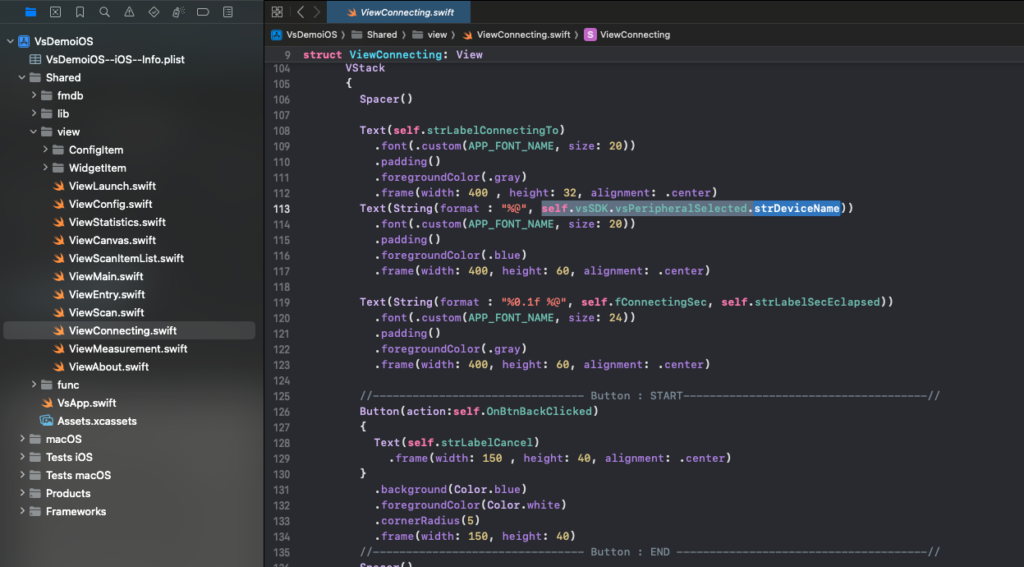
After a VSH101 device is selected from the Scan View, the application transitions to a Connecting View.
This view serves as an intermediate state between device selection and active measurement. Its purpose is to clearly indicate that the application is in the process of establishing a Bluetooth Low Energy (BLE) connection with the selected VSH101 device.
The Connecting View provides the following information to the user:
The name of the selected VSH101 device
The elapsed time since the connection attempt started
A Cancel button that allows the user to abort the connection process
Displaying a dedicated Connecting View improves user experience by:
Avoiding ambiguity during the BLE connection handshake
Preventing the perception that the application has stalled
Allowing users to safely cancel and return to the Scan View if needed
From a system design perspective, this view represents a transitional connection state, where:
BLE services and characteristics are discovered
Device initialization and handshake procedures are performed
The application verifies that the device is ready for data streaming
Once the BLE connection is successfully established, the application automatically transitions to the Measurement View, where real-time ECG data is displayed.
If the connection is canceled or fails, the user is returned to the Scan View to select another device or retry the connection.
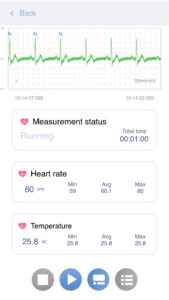
4.6 Measurement View – ECG Monitoring in Real Time
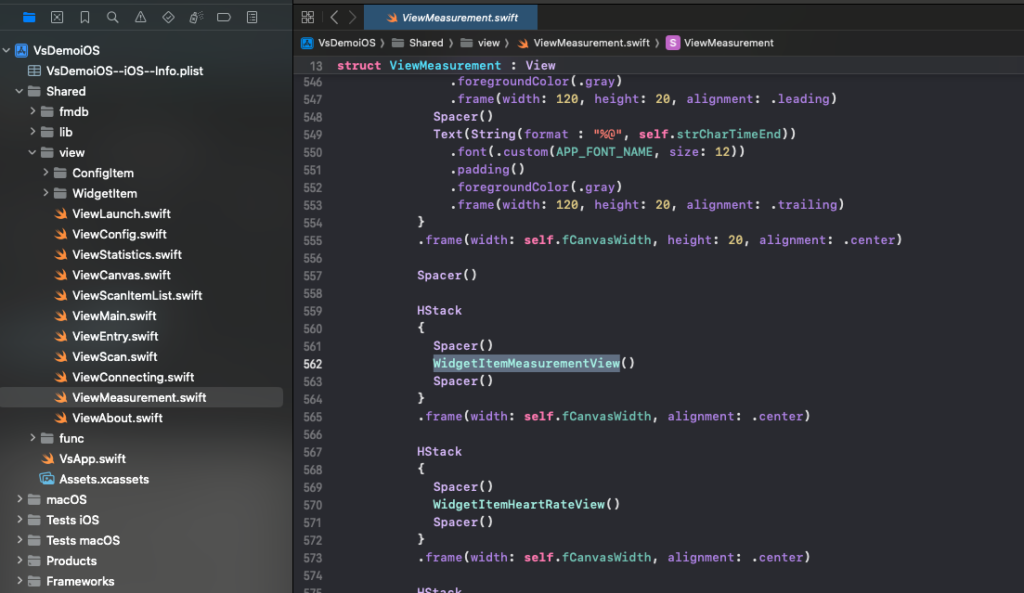
Once connected, the app transitions to the Measurement View.
This page displays:
Real-time ECG waveform
Heart rate (current, minimum, average, maximum)
Measurement status and duration
Additional sensor data (such as temperature, if available)
At this stage, ECG data is continuously streamed from the VSH101 and rendered on the screen in real time.
4.6 Preparing for Accurate Measurement
Before starting measurement, please ensure the following conditions are met:
The VSH101 device is powered on
The device is properly worn on the body, following usage guidelines
The user remains relatively still during measurement
Alternatively, an ECG simulator provided by VitalSigns may be used for development and testing
Proper device placement and stable contact are essential for obtaining reliable ECG signals.
4.7 Developer Notes
From a developer’s perspective, this chapter demonstrates:
How BLE scanning and device selection are implemented
How the app transitions between views based on connection state
How real-time ECG data is visualized in the Measurement View
In the next chapter, we will explore how ECG data is streamed, processed, and recorded inside the application.
5. Device Configuration via BLE Packet Commands
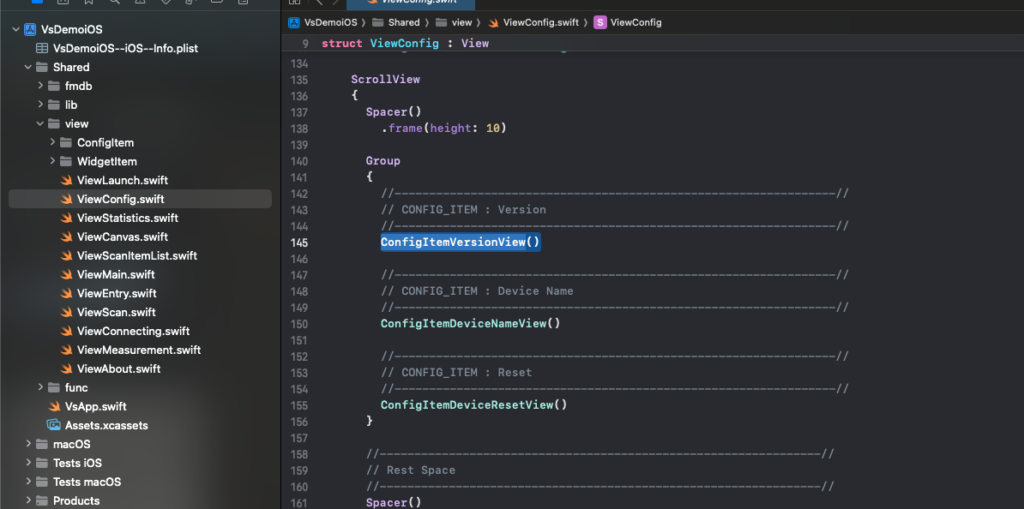
In addition to real-time ECG measurement, VsDemoiOS also provides a Configuration (Config) page, which demonstrates how the iOS application communicates with the VSH101 device using packet-based commands over Bluetooth Low Energy (BLE).
This configuration mechanism is designed to give developers a clear and extensible reference for implementing device control, parameter configuration, and system management functions.
5.1 Purpose of the Configuration Page
The Config page serves as a practical example of how to:
Send structured commands from the iOS app to the VSH101 device
Receive and parse acknowledgment (ACK) responses
Perform device-level configuration and control actions
Safely handle commands that may interrupt the BLE connection
All configuration operations are performed after a BLE connection has been established.
5.2 Packet-Based Communication Architecture
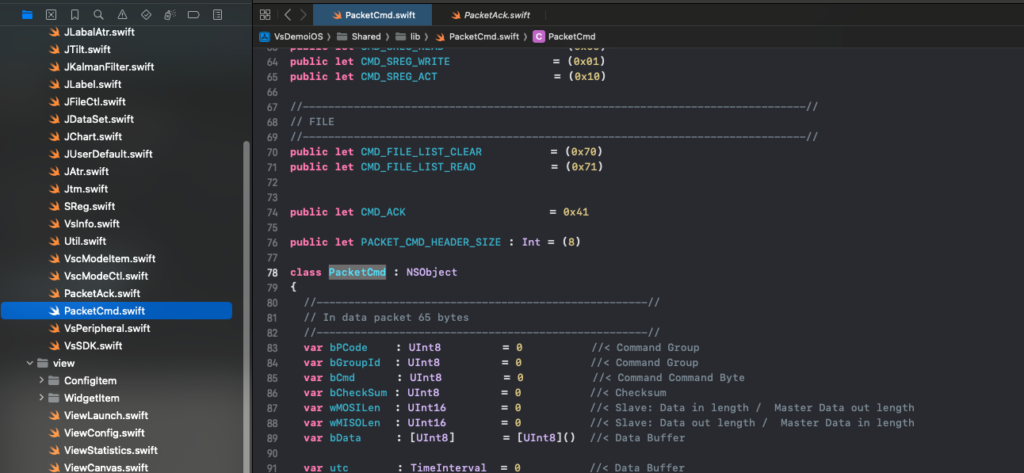
Communication between the iOS application and the VSH101 device is implemented using a packet command protocol on top of BLE characteristics.
At a high level, the architecture consists of:
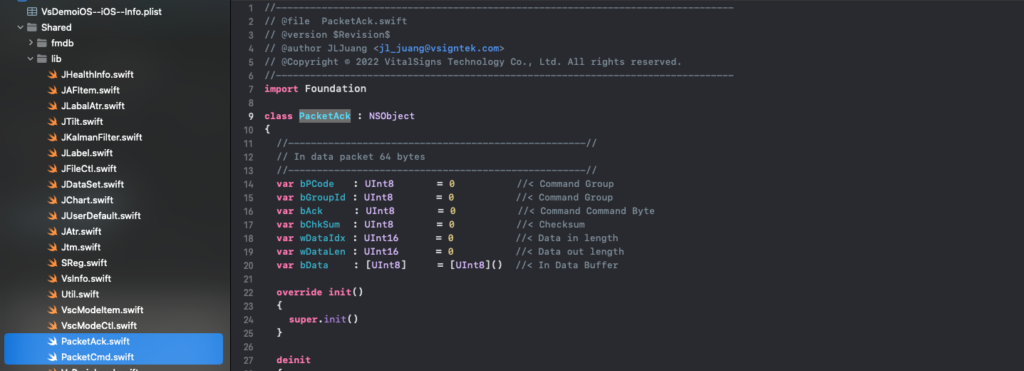
PacketCmd
Defines the command type, command ID, and payload structureFuncPacket
Responsible for assembling packets, sending them over BLE, and dispatching responsesPacketAck
Represents the acknowledgment packet returned by the device, including status and response data
This layered design allows developers to:
Add new commands without modifying the BLE transport layer
Keep command logic separate from UI logic
Maintain deterministic and debuggable communication behavior
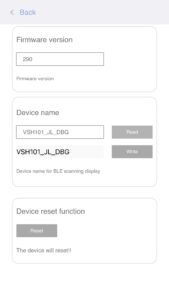
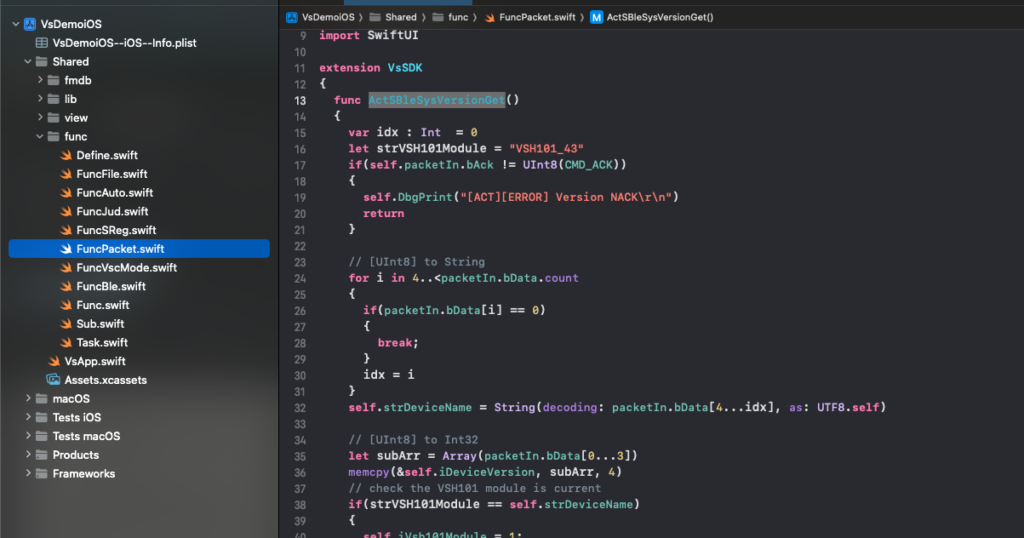
5.3 Example 1: Read Firmware Version
The first example demonstrates how the app reads the firmware version from the VSH101 device.
Purpose
Verify device compatibility
Confirm firmware revision during development or deployment
Flow
The app sends a read firmware version packet command
The VSH101 responds with an ACK packet containing the firmware version value
The result is displayed on the Config page
Developer Notes
This command is typically non-intrusive
It does not affect device operation or BLE connection state
It is recommended to query firmware version immediately after connection
5.4 Example 2: Read and Write Device Name
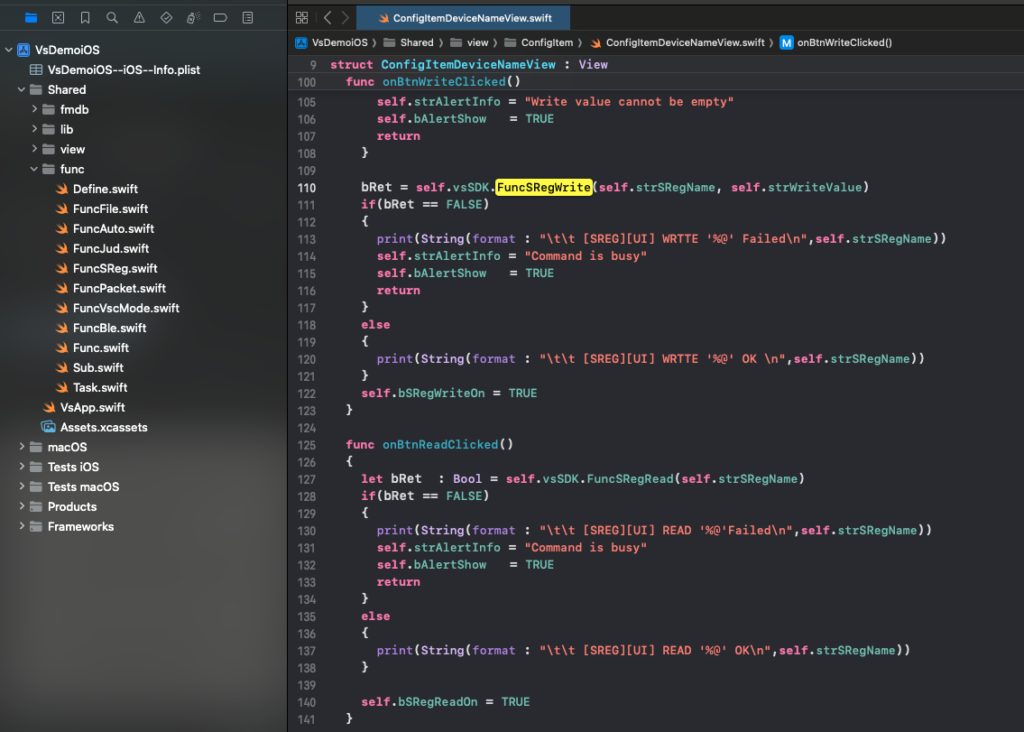
The second example demonstrates how the app reads and updates the BLE device name used for scanning and display.
Read Device Name
Sends a read command
Receives the current device name via ACK
Displays the name on the UI
Write Device Name
Sends a write command with the new device name as payload
The device stores the new name internally
The updated name is used for future BLE scanning
Important Notes
The new device name will only appear in BLE scan results after reconnection
Developers should ensure the device name conforms to BLE advertising constraints
This example shows how variable-length payloads can be transmitted safely
5.5 Example 3: Device Reset Command
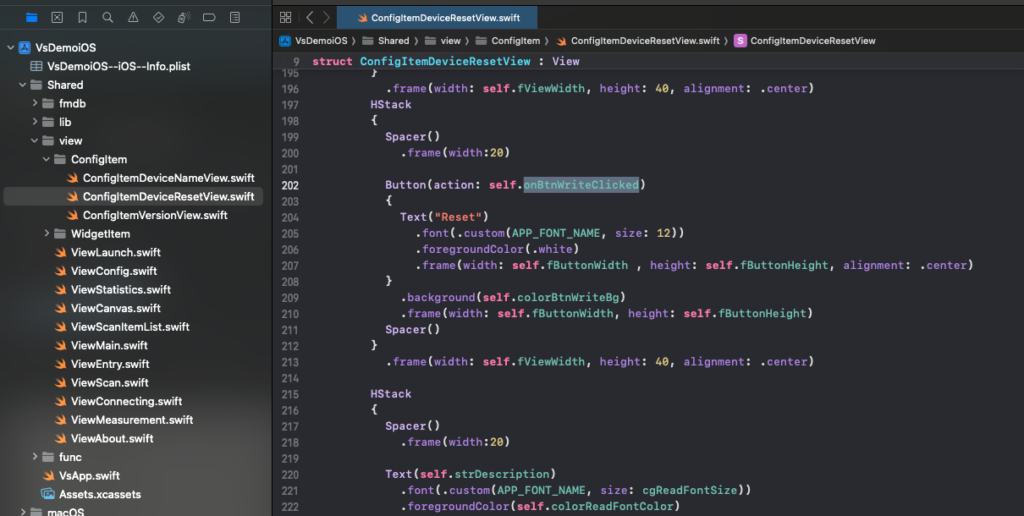
The third example demonstrates how to remotely reset the VSH101 device.
Purpose
Apply configuration changes
Recover from abnormal device states
Restart the device without physical interaction
Behavior
The app sends a device reset packet command
The VSH101 acknowledges the command
The device performs a reboot
Critical Notice
After a reset, the BLE connection will be terminated immediately
The application must return to the Scan View
Users must reconnect to the device manually
For this reason, reset commands should be used with caution and only when necessary.
5.6 Connection Handling After Reset
Because a device reset interrupts the BLE connection:
The app should clearly notify the user that reconnection is required
Any ongoing measurement or configuration session must be terminated
The Scan → Connect → Measurement workflow must be restarted
This behavior is intentionally exposed in VsDemoiOS to help developers design robust reconnection logic in their own applications.
5.7 Extending the Packet Command Framework
The three examples above represent a minimal but complete reference set for packet-based device control.
Developers can extend this framework to implement additional features such as:
Device parameter configuration
Diagnostic commands
Calibration routines
Manufacturing or test utilities
By following the existing PacketCmd, FuncPacket, and PacketAck patterns, new commands can be added with minimal impact to the rest of the system.
5.8 Summary
The Config page in VsDemoiOS demonstrates a clean and scalable approach to BLE-based device configuration using packet commands.
It provides:
A real-world command protocol example
Safe handling of read, write, and disruptive commands
A solid foundation for building advanced device management features
In the next chapter, we will focus on how ECG data packets are streamed, processed, and visualized in real time during measurement.
6. VSC Mode – Real-Time ECG Streaming and Measurement Information
6.1 Introduction to VSC Mode
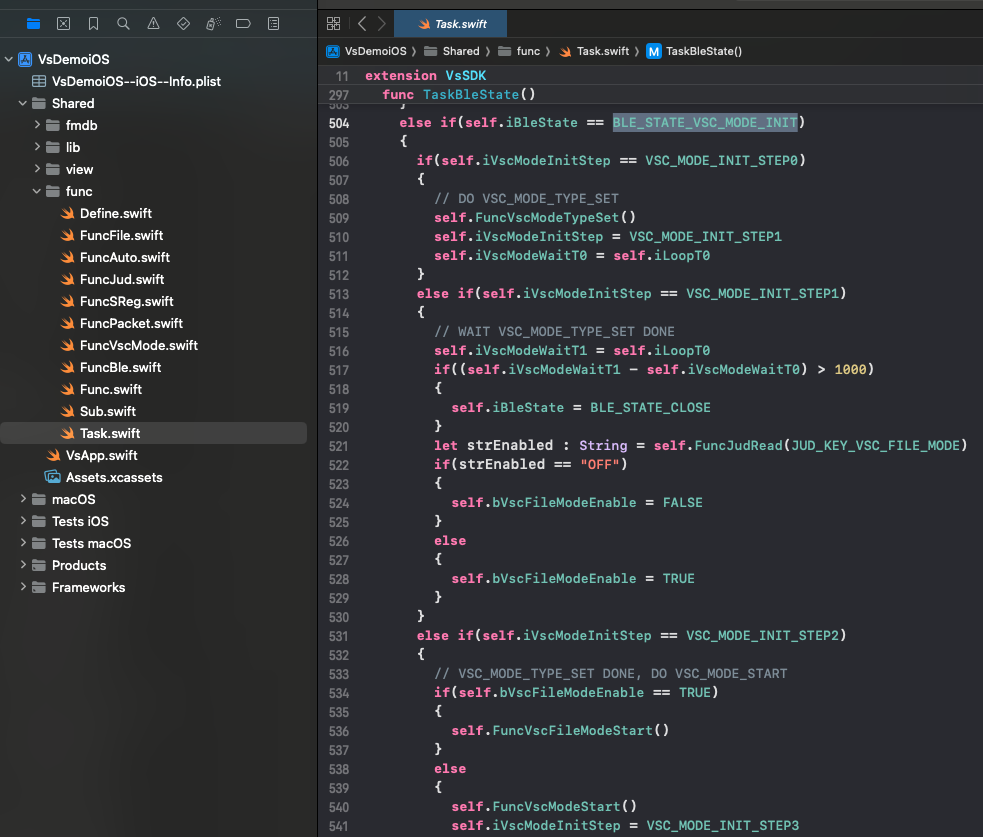
In VsDemoiOS, real-time ECG acquisition from the VSH101 device is implemented through a mechanism called VSC Mode (VitalSigns Command Mode).
VSC Mode is a packet-based, pull-driven streaming protocol operating on top of Bluetooth Low Energy (BLE).
Instead of continuously pushing raw data, the VSH101 responds to indexed VSC Mode read commands, each returning a structured packet that contains:
A block of ECG waveform samples
Beat / QRS (ATR) markers
Device-computed measurement information, including:
Heart rate–related timing
HRV-related parameters
Skin temperature
Motion / G-sensor status
Battery information (if enabled)
This design provides deterministic control, robustness, and extensibility for both mobile applications and downstream AI pipelines.
6.2 High-Level VSC Mode Workflow
Once the application enters the Measurement View, the following loop is executed continuously:
The app issues a VSC Mode Read command with a packet index (
wId)VSH101 returns the corresponding VSC Mode packet
The app validates, decodes, and enqueues the packet
ECG samples and measurement info are processed and rendered
The packet index is incremented and wrapped
The next VSC Mode read is issued
At any given time, only one VSC Mode command is outstanding, ensuring ordered and deterministic communication.
6.3 VSC Mode Control State (VscModeCtl)
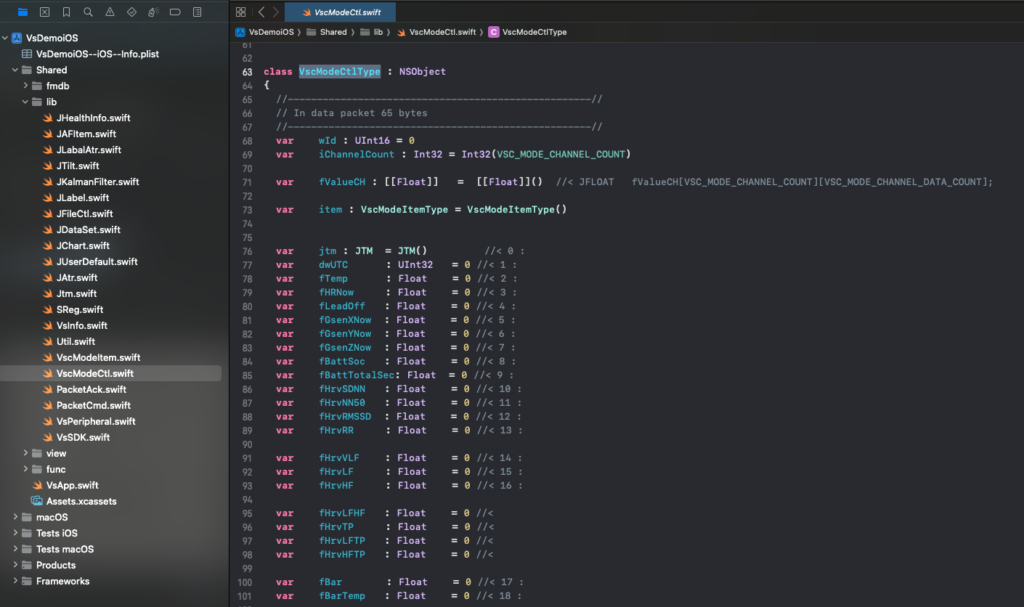
The central runtime state for VSC Mode is maintained by VscModeCtl.
Key responsibilities include:
Tracking the current VSC packet index (
wId)Managing the active VSC Mode type
Maintaining a queue of decoded
VscModeItemobjectsRecording timing information for ECG and measurement alignment
Tracking error counts and recovery conditions
6.3.1 Packet Indexing Strategy
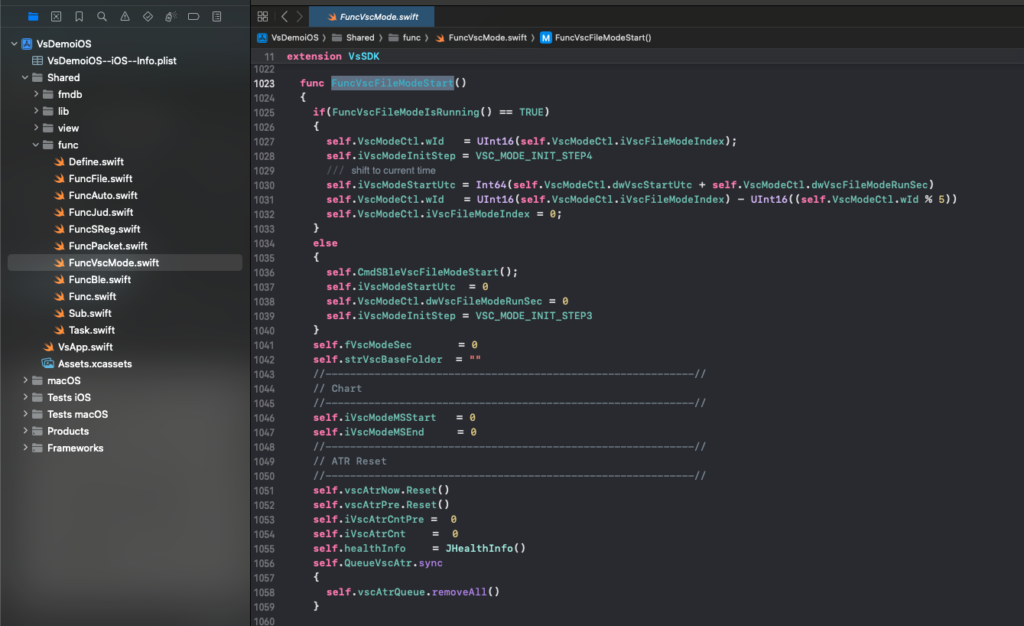
VSC Mode uses a rolling packet index:
Index range:
0 … VSC_MODE_IDX_MAX - 1After each successful packet:
wId = (wId + 1) % VSC_MODE_IDX_MAX
This index is embedded in both the request and the response, allowing the app to detect:
Packet loss
Out-of-order responses
Firmware restarts or internal buffer resets
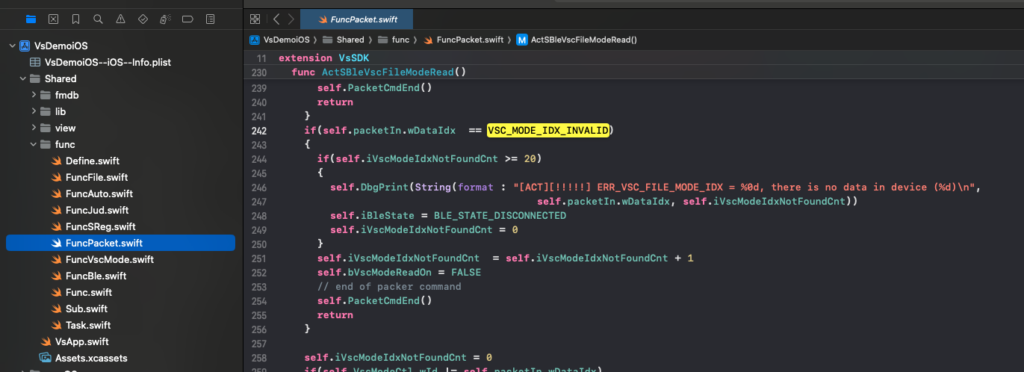
If an invalid index (VSC_MODE_IDX_INVALID) is returned, recovery logic is triggered.
6.4 VSC Mode Command and Packet Framing
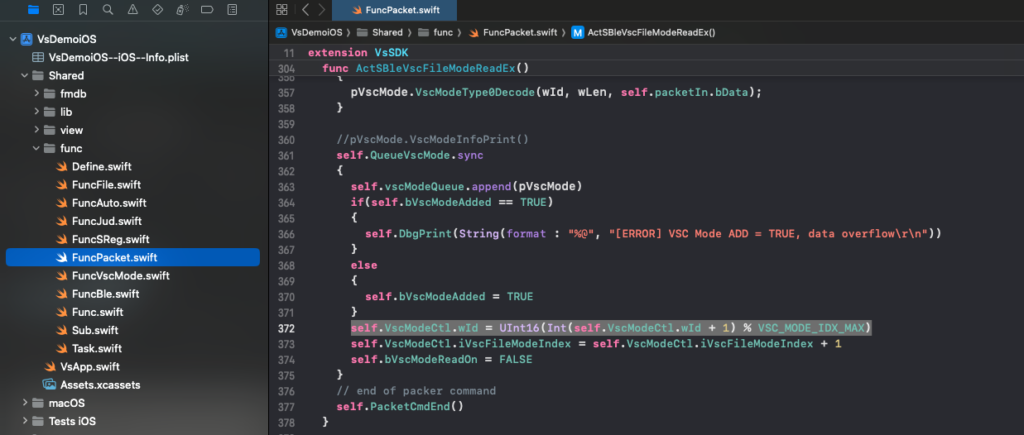
Each VSC Mode read operation is issued using a standard VitalSigns packet command.
6.4.1 Command Header
All commands use an 8-byte header (PacketCmd):
| Field | Description |
|---|---|
| Packet Code | Identifies VitalSigns command framing |
| Group ID | BLE command group |
| Command ID | VSC Mode read command |
| Checksum | Simple integrity check |
| MOSI Length | Payload length (request) |
| MISO Length | Expected response payload length |
6.4.2 VSC Mode Read Payload (MOSI)
The request payload contains:
wId– VSC packet index (Little Endian)dwVscModeType– VSC Mode type identifier
This allows firmware to return a specific indexed packet in a defined format.
6.5 VSC Mode Packet Types and Sizes
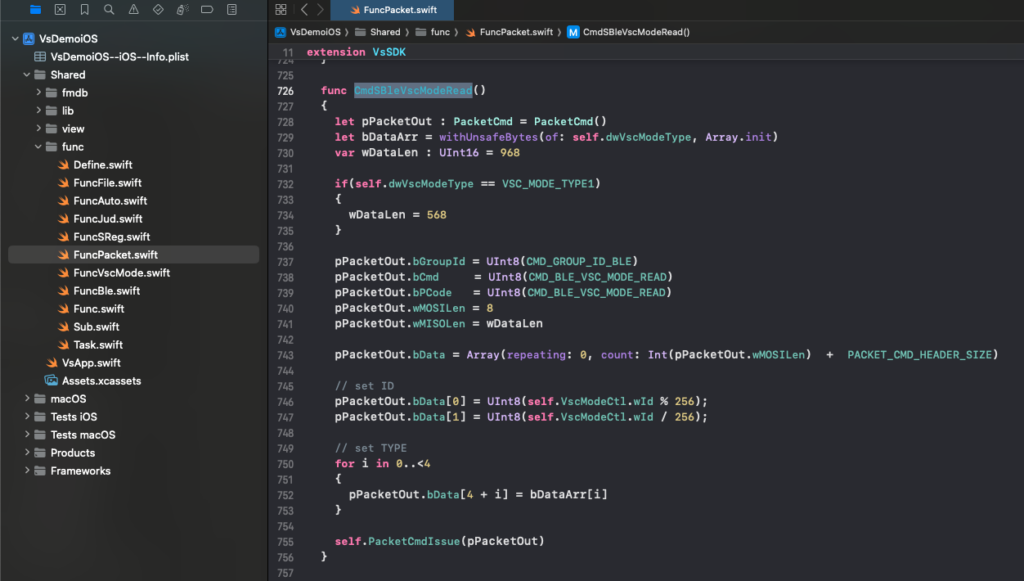
VsDemoiOS supports multiple VSC packet formats.
| VSC Mode Type | Payload Size (bytes) | Purpose |
|---|---|---|
| Type 0 | 968 | Full ECG + extended measurement info |
| Type 1 | 568 | Reduced ECG + compact info set |
The selected type determines:
Number of ECG samples per packet
Which measurement labels are present
Expected parsing logic
Decoding is performed by versioned decode functions to maintain backward compatibility.
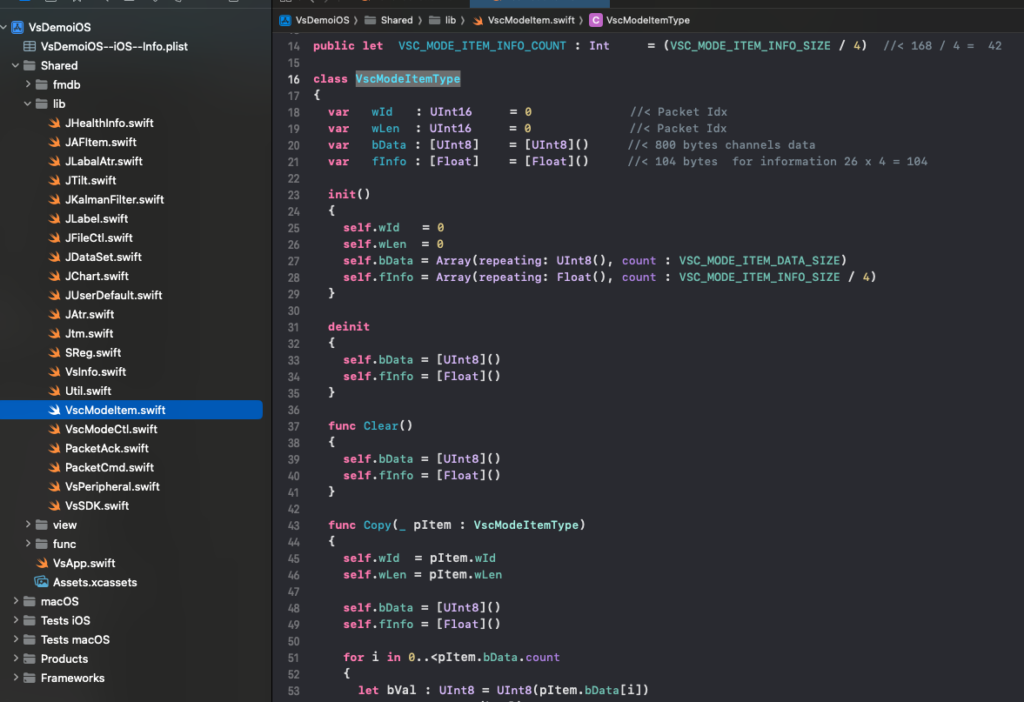
6.6 VscModeItem – Decoded Packet Representation
Each successfully decoded packet is represented by a VscModeItem object.
A VscModeItem encapsulates:
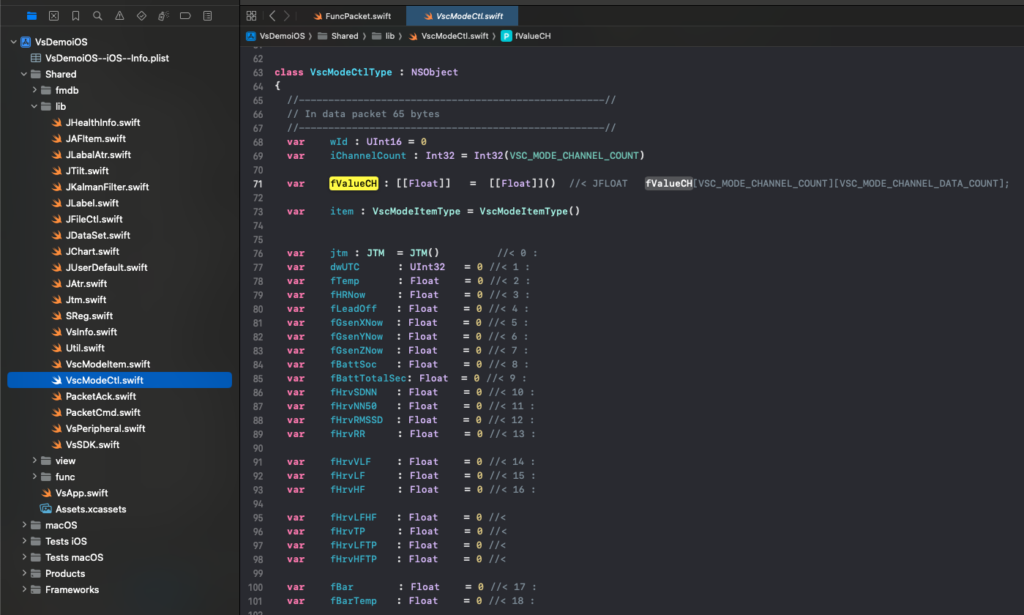
6.6.1 ECG Waveform Data
Floating-point ECG sample arrays per channel:
fValueCH[]
Each packet represents a fixed time slice (200 ms) of signal
Sample blocks are appended into rolling datasets with FIFO limits
This design supports:
Real-time waveform display
Continuous long-term buffering
Downstream export or AI ingestion
6.6.2 Beat / QRS (ATR) Marker
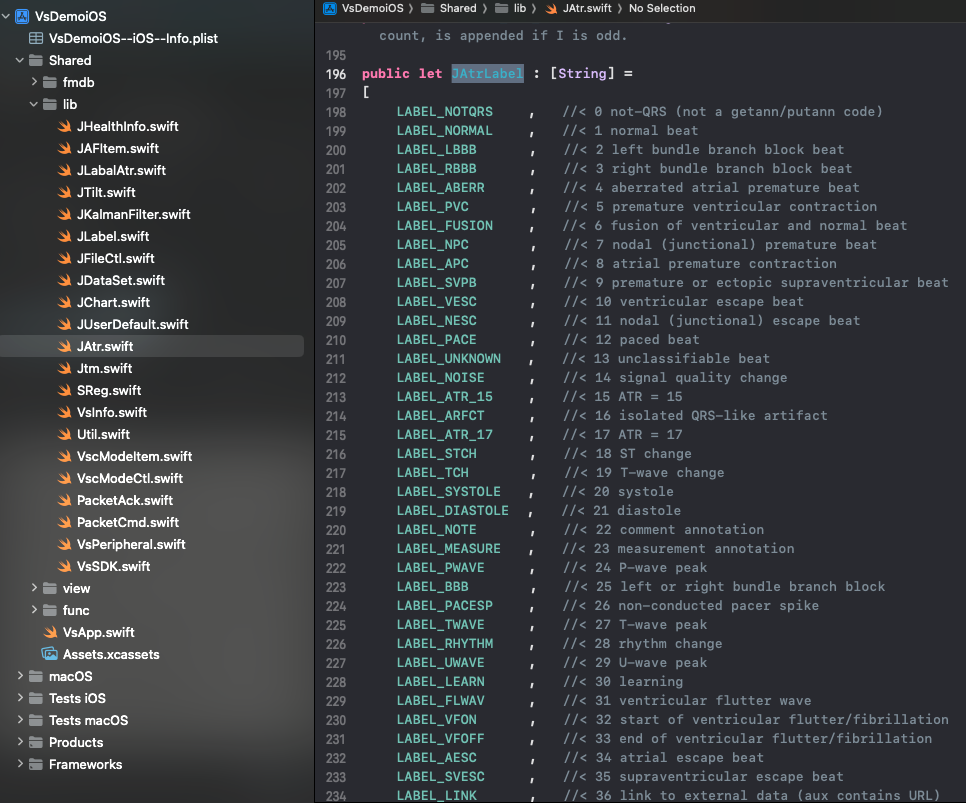
Each packet may contain an ATR event, represented by:
Timestamp (
dwMS)Marker type (
bAtr)
ATR events are used to:
Align ECG waveform with beat detection
Compute heart rate in the application layer
Provide labeled data for algorithm training
6.6.3 Measurement Information Labels
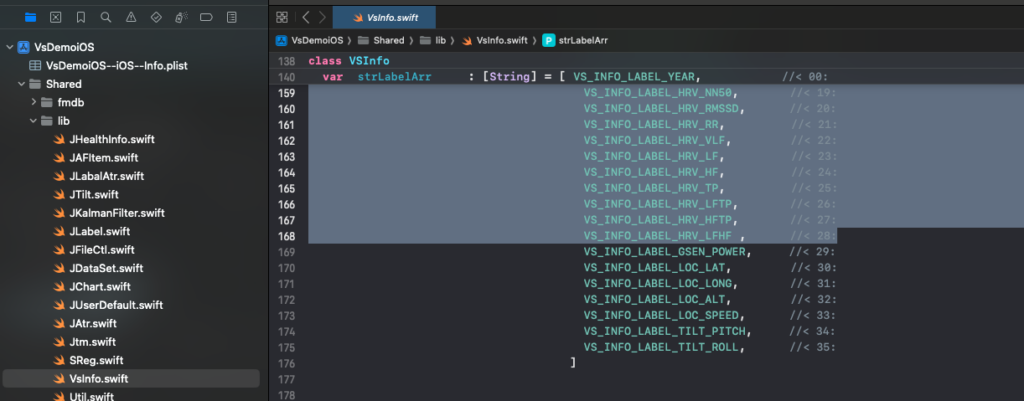
VSC packets also embed device-computed information labels, parsed into a structured info object:
Temperature (skin temperature)
HRV-related parameters:
RR intervals
SDNN
RMSSD
LF/HF ratio
LF / HF power
Motion / G-sensor data
Battery state of charge
To reduce processing overhead, VsDemoiOS updates these labels periodically (e.g., every 5 packets), rather than on every packet.
6.7 ECG Timebase and Data Alignment
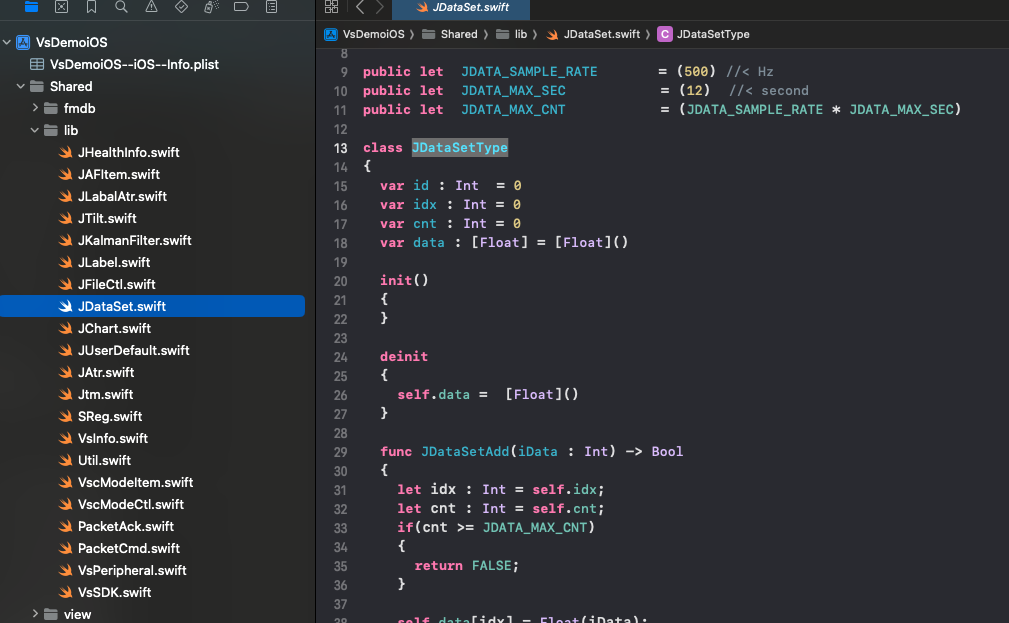
Each VSC Mode packet advances the internal timebase by 200 milliseconds.
The application maintains:
An ECG timeline counter
A dataset time index for waveform rendering
ATR timestamps aligned to the same timebase
This ensures that:
ECG waveforms scroll smoothly
Beat markers appear at correct positions
Derived metrics (HR, HRV) remain temporally consistent
6.8 Heart Rate Computation in the App Layer
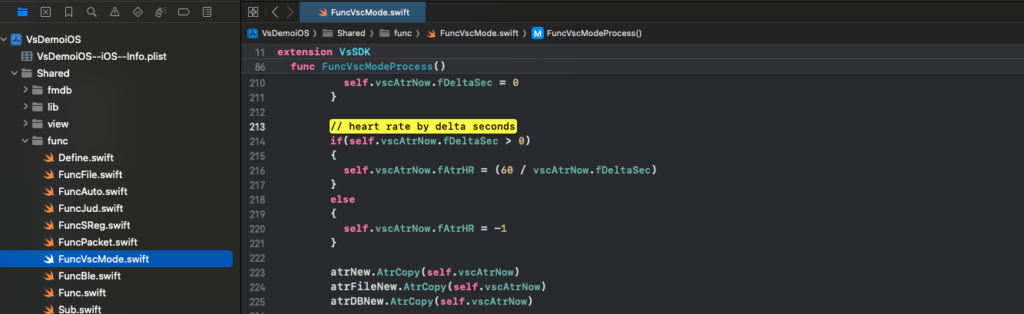
Although VSH101 provides timing information, instantaneous heart rate in VsDemoiOS is computed at the application layer:
Measure delta time between consecutive ATR events
Convert interval to seconds
Compute:
HR = 60 / RR_interval_secondsApply plausibility checks before updating UI
This approach ensures robustness and allows developers to customize HR smoothing or filtering strategies.
6.9 Error Handling and Recovery Mechanisms
VSC Mode includes multiple layers of protection:
ACK validation – only valid ACK packets are processed
Index mismatch detection – protects against stale or reordered packets
Timeout handling – prevents indefinite blocking (default ~500 ms)
Consecutive error counters – escalate recovery actions
Forced disconnect – used as a last-resort reset mechanism
These mechanisms are critical for stable long-term monitoring in real-world BLE environments.
6.10 Extending VSC Mode for Custom Applications
The VSC Mode architecture is intentionally modular and extensible.
Developers can:
Add new measurement labels
Extend
VscModeItemwith custom fieldsIntroduce new VSC packet types
Route decoded packets to cloud, file storage, or AI pipelines
Recommended layering:
BLE transport & packet framing
VSC protocol & decode logic
Data buffering & processing
UI and analytics
By preserving this separation, applications remain maintainable as firmware and algorithms evolve.
6.11 Summary
VSC Mode provides a deterministic, extensible, and production-grade mechanism for streaming ECG and physiological information from the VSH101 device.
Through indexed packet control, structured decoding, and robust error handling, VsDemoiOS demonstrates how mobile applications can reliably acquire high-quality ECG data suitable for visualization, recording, and AI-based analysis.
7. Storage (Hourly Folder Layout & File Formats)
In VsDemoiOS, data storage is handled in a sub-routine loop so that the UI/measurement pipeline stays responsive while ECG packets keep arriving. The app saves data into the iOS Documents directory, and organizes files into one folder per hour. This makes long recordings easier to manage, upload, and post-process.
7.1 Where files are stored (iOS Documents)
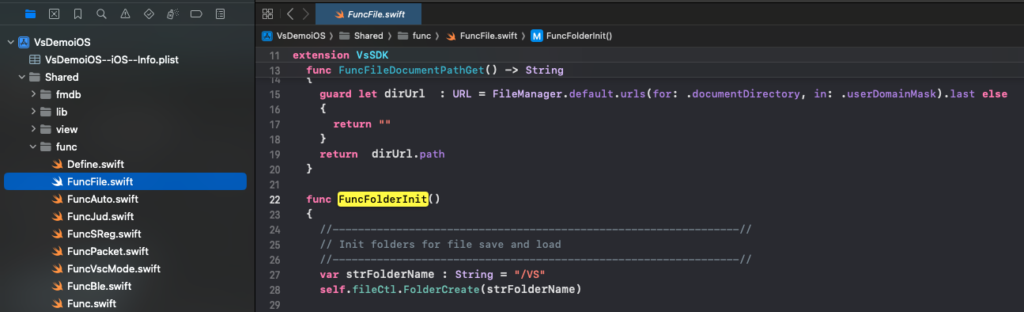
At startup, the SDK initializes a base folder structure under the app’s sandbox:
Documents/VS: main storage for VSH101 measurement sessions
Documents/.TMP: temporary workspace (optional use for export / staging)
This is created by the folder initialization flow (via FuncFolderInit()), using the file helper JFileCtlType (folder create / existence checks / file open).
7.2 Folder structure (Session → Date → Hour)
When the device is measuring and VSC mode packets are being saved, the SDK builds the folder path in FuncVscModeFileNameSet() using the VSH101 timestamp (pVscMode.jtm) and the connected device identifier (self.strDeviceSsn).
The structure is:
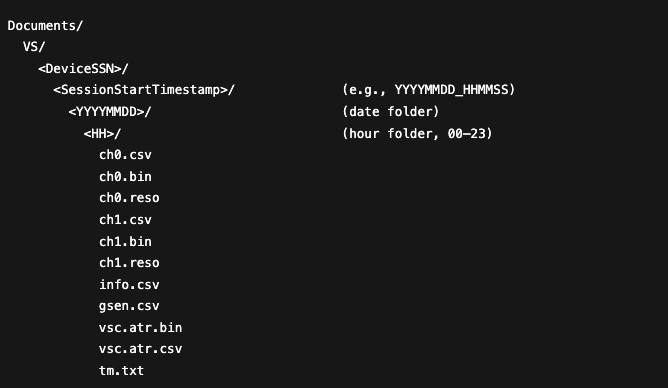
Key idea:
A “session” folder groups a recording run (start time is used once, then reused).
Under the session, data is split by date and then by hour, so each hour becomes a clean “chunk”.
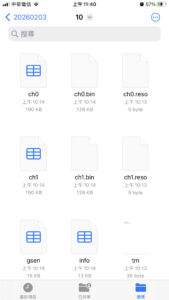
This is exactly why, in your iOS Files screenshot, you see files like ch0, ch0.bin, ch0.reso, info, gsen, tm, etc.
7.3 How storage is triggered (Sub-routine + queue)
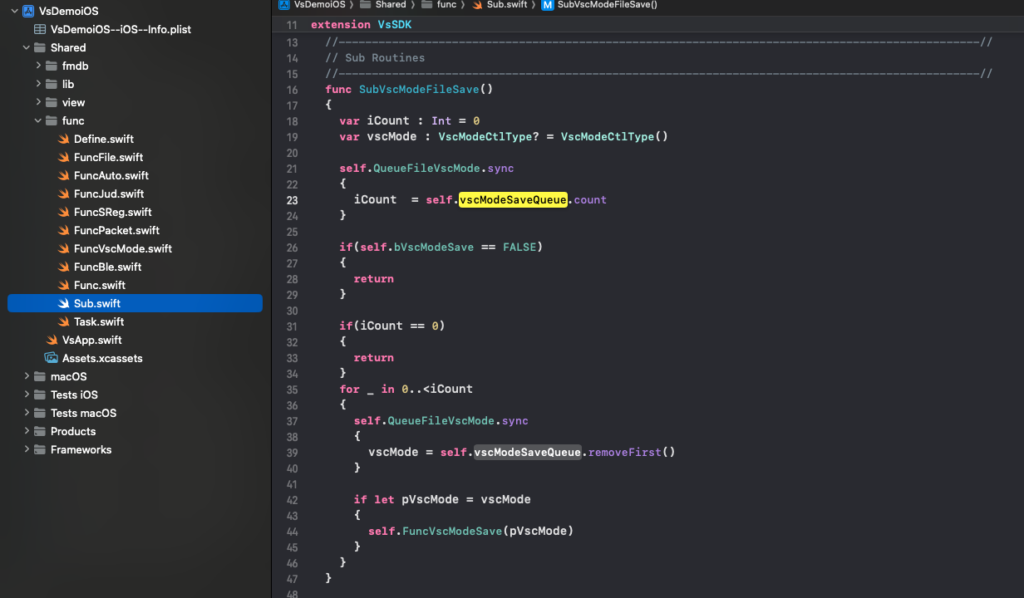
Saving is done asynchronously through a queue and a sub-loop:
Incoming VSC packets are appended into a save queue:
vscModeSaveQueueThe periodic loop calls
SubVscModeFileSave()SubVscModeFileSave()pops queued items and calls:
FuncVscModeSave(pVscMode)
This design is important for engineers who want to extend the SDK:
BLE receiving / parsing stays real-time
File I/O is moved into a controlled background-style loop
You can replace “save-to-files” with save-to-database, upload-to-cloud, or custom encryption without changing the BLE pipeline
7.4 Files saved per hour (What gets written)
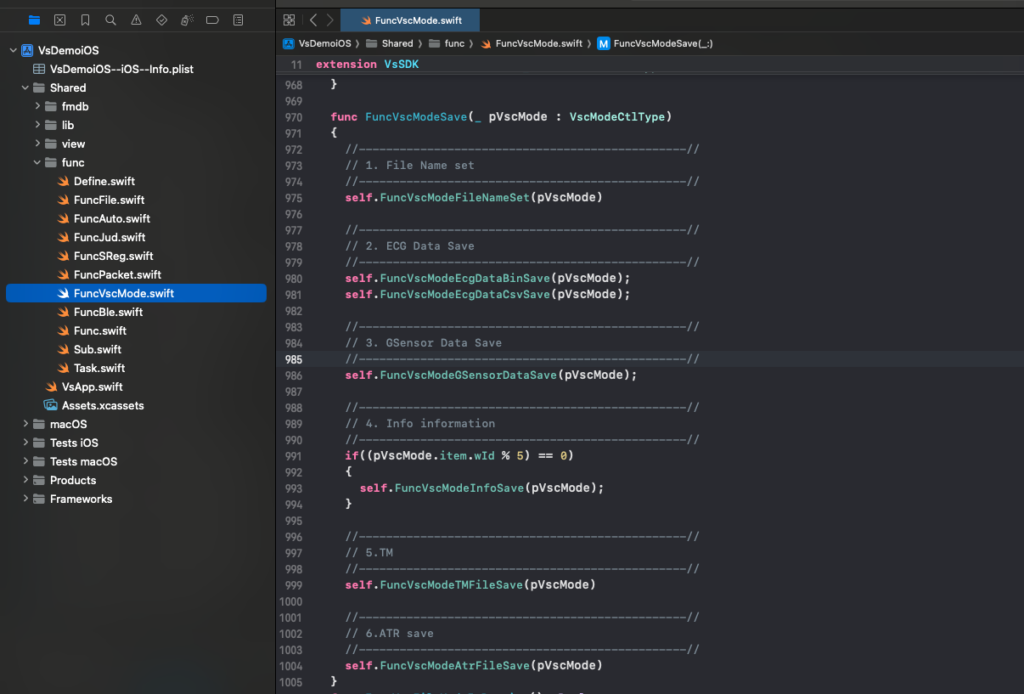
FuncVscModeSave() writes several outputs in this order:
File names & folders set
FuncVscModeFileNameSet(pVscMode)ECG data saved
FuncVscModeEcgDataBinSave(pVscMode)FuncVscModeEcgDataCsvSave(pVscMode)
G-sensor saved
FuncVscModeGSensorDataSave(pVscMode)
Info saved (every 5 packets)
FuncVscModeInfoSave(pVscMode)only when(pVscMode.item.wId % 5) == 0
tm.txt written when an hour folder is newly created
FuncVscModeTMFileSave(pVscMode)only whenbHourFolderCreate == TRUE
ATR (QRS/arrhythmia markers) saved
FuncVscModeAtrFileSave(pVscMode)→ writes both BIN + CSV from an internal atr queue
7.5 ECG files: chX.csv, chX.bin, chX.reso
(A) chX.csv — human-readable waveform
Appends one ECG sample per line
Format:
"%0.3f\n"For each VSC packet, the code computes the number of float samples per channel:
iCnt = (VSC_MODE_ITEM_DATA_SIZE / 4) / channelCount
So if there are 2 channels, the packet’s 800 bytes (float32) are split evenly per channel.
(B) chX.bin — float32 raw waveform (recommended for post-processing)
Appends float32 samples
Each sample is written as 4 bytes from a Swift
FloatThis is ideal if your customer wants:
Fast loading into Python/MATLAB
AI training datasets
Lossless numeric workflow
Practical note for developers: this binary is a contiguous stream of float32 values for that channel, appended packet-by-packet.
(C) chX.reso — channel resolution scaling
Created once if missing
Default value written:
"1.000"(actually printed as%0.3fof1)This is a simple way to store “amplitude scaling” metadata next to the channel.
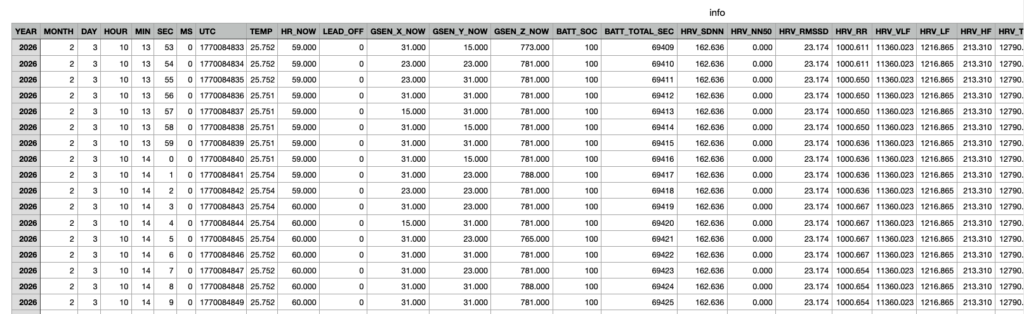
7.7 info.csv — per-interval physiological & device info
info.csv is created per hour and contains:
Timestamp columns (YEAR/MONTH/DAY/HOUR/MIN/SEC/MS)
UTC
Temperature
Heart rate (current)
Lead-off flag
Current g-sensor values
Battery SOC + total seconds
HRV metrics (SDNN, NN50, RMSSD, RR, VLF, LF, HF, TP, ratios)
Motion power, tilt pitch/roll, barometer, barometer temperature
Header logic
If file does not exist, the code writes a header row first.
Then each saved row appends numeric values in the same order.
Sampling rule
Saved only every 5 packets:
(wId % 5) == 0
This reduces file size and avoids “over-logging” while still keeping trend-level data aligned to the waveform stream.
7.8 tm.txt — hour-folder timestamp marker
When a new hour folder is created, tm.txt is written once with three lines:
totalSecin that hour (min*60 + sec)pVscMode.jtm.t(your internal time value; typically epoch-based in your time model)A formatted string like:
YYYY/MM/DD-HH:MM:SS
This makes it easy for tools to understand when that hourly segment started, even without parsing other files.
7.9 ATR files: vsc.atr.bin and vsc.atr.csv (QRS / event markers)
During measurement, ATR markers are queued and then flushed by FuncVscModeAtrFileSave():
(A) vsc.atr.bin
For each atr event, it writes two fields repeatedly:
A:
Int32(atr.bAtr)→ 4 bytesMS:
atr.dwMS→ 4 bytes
So each record is 8 bytes.
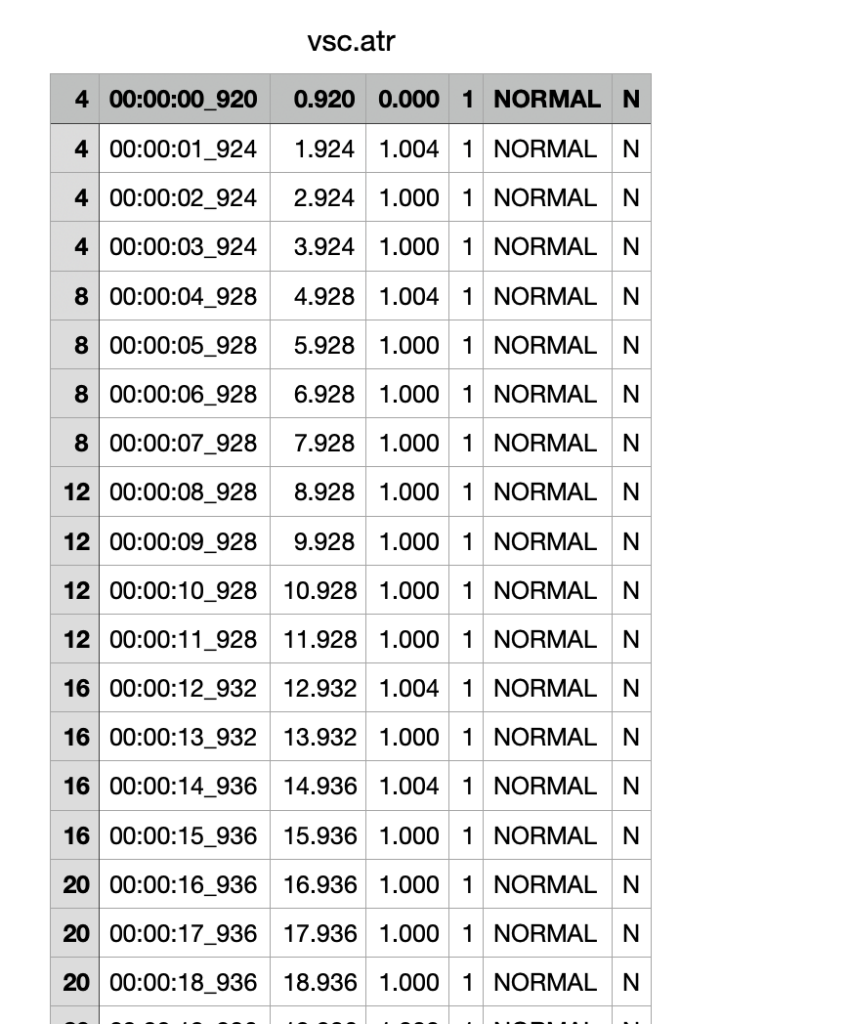
(B) vsc.atr.csv
CSV rows (with header if new):
#, TIME, TSEC, DT, A, LABEL, NOTE
TIMEis formatted from (seconds, ms)TSECisatr.dwMS / 1000.0DTisatr.fDeltaSecAis the numeric codeLABEL/NOTEcome from your atr label tables (e.g.,JAtrLabel,JAtrAbbrev)
This file is extremely helpful for:
Rendering beat markers on ECG charts
Validating QRS detection timing
Training/labeling AI models with aligned events
7.10 How to customize storage for your customers (Recommended extension points)
If an SI team or research lab wants to build their own storage pipeline, the easiest approach is:
Keep the VSC mode acquisition unchanged
Replace or extend inside
FuncVscModeSave():Write into SQLite/CoreData instead of CSV/BIN
Encrypt each hour folder (zip + AES)
Upload hourly segments to cloud storage
Add new metadata files (JSON headers, device config snapshots)
Practical guidelines
Keep the “hour folder” concept: it is a clean unit for upload/retry.
Avoid heavy I/O on the BLE callback thread—always use the existing queue + sub-loop pattern.
If you add new files, name them per hour folder so a single hour remains self-contained.
8. AI Integration, Cloud Connectivity, and System-Level Applications
8.1 Overview
Many of our customers use VsDemoiOS not only as a reference ECG application, but as a foundation for their own AI-driven and cloud-connected cardiac monitoring systems.
By providing a complete and transparent iOS implementation – from BLE communication and real-time ECG streaming to structured storage – VsDemoiOS enables developers to rapidly integrate custom AI models, cloud services, and real-world data pipelines without re-implementing the device communication layer.
8.2 Supporting AI Model Development and Validation
A common use case for VsDemoiOS is AI algorithm development and evaluation.
Using this app, customers can:
Collect real-time and real-world single-lead ECG data directly from the VSH101 device
Store high-fidelity waveform data and aligned event markers
Transmit ECG streams or stored files to their own cloud platforms
Use these datasets for training, validation, and regression testing of AI models
Typical AI models integrated by customers include (but are not limited to):
Atrial fibrillation (AF) detection
Myocardial infarction (MI) risk assessment
Rhythm classification and anomaly detection
Signal quality evaluation and artifact detection
VsDemoiOS allows these AI pipelines to be connected either:
On-device (integrating pre-trained models directly into the iOS app), or
Off-device (streaming or uploading data to customer-managed cloud services)
8.3 Real-Time AI and Edge Processing
For customers who require real-time feedback, VsDemoiOS can serve as an edge-processing platform.
By integrating AI inference logic into the Measurement View or data processing pipeline, customers can:
Perform real-time heart rate analysis
Generate live alerts based on ECG patterns or physiological trends
Provide immediate feedback to users or caregivers
This approach is especially useful for:
Prototyping early-warning concepts
Evaluating algorithm latency and performance
Demonstrating system feasibility to stakeholders
8.4 Cloud Integration and Large-Scale Data Analysis
VsDemoiOS is also widely used by customers to bridge VSH101 devices with their cloud infrastructures.
Common cloud integration scenarios include:
Uploading hourly ECG segments for long-term storage
Aggregating patient data for population-level analysis
Re-running AI models on cloud servers for batch evaluation
Supporting retrospective studies and continuous model improvement
The hourly storage design described in previous chapters makes it easy to:
Segment uploads
Retry failed transfers
Maintain traceability between raw signals and derived results
8.5 System Integrator (SI) Use Cases
System integrators frequently adopt VsDemoiOS to build end-to-end cardiac monitoring solutions, including:
Continuous or long-term heart rate monitoring
Remote patient observation systems
Trend-based cardiac function evaluation
Proactive early-warning and risk assessment platforms
By reusing the existing app structure, SI teams can quickly assemble systems that combine:
VSH101 hardware
iOS-based data acquisition
Real-time visualization
AI-based analysis
Cloud-based dashboards and alerts
This significantly shortens development cycles and reduces integration risk.
8.6 Flexibility and Extensibility by Design
VsDemoiOS is intentionally designed to be modular and extensible.
Developers are free to:
Replace local storage with encrypted databases
Add secure cloud transmission layers
Integrate custom AI inference engines
Extend configuration and control commands
Customize UI and workflows for specific use cases
By building on this open-source framework, customers can focus their effort on differentiation and innovation, rather than low-level device integration.
8.7 Final Notes
VsDemoiOS represents VitalSigns Technology’s commitment to open collaboration, engineering transparency, and professional integration support.
We hope this documentation and reference implementation will help our partners:
Accelerate development timelines
Validate ideas using real physiological data
Integrate AI and cloud services efficiently
Build reliable and scalable cardiac monitoring systems
Any AI models, clinical interpretations, or decision-support functions integrated by customers are the responsibility of the implementing party and must be validated and approved according to applicable regulatory requirements.
For commercial deployment, regulatory compliance, or advanced integration support, please contact sales@vsigntek.com.